Showing posts with label Computer Problems and Solutions. Show all posts

Hard Disk Recovery

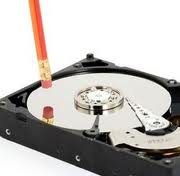
Inside view of a Hard Drive
Inside view of Hard Drive (covers removed)

How to Backup your Hard Disk Data:

The data stored on your hard drive is the most critical part of your computer, which cannot be easily replaced. It may be an unwanted expense to repair and replace defective memory, monitor, or a processor, but there is no easy way to replace years of your critical data!
In addition to the possibility of a simple (mechanical) hard drive failure, the threat of Internet borne worms and viruses has become an increasing risk to data loss or corruption. Although you may not be able to provide absolute protection to your hard drive, there are various ways that you can ensure that the data on your hard drive is archived. Three methods of backing up your data are summarized below:

1. CD and DVD Writers:

The falling prices of CD and DVD burners have made them a ‘essential’ part of just about every modern computer. These devices can typically be found installed in a computer case, but external devices supporting USB 2.0 or Firewire interface are available for greater flexibility, mobility and ease of installation.
The main limitation of using a CD writer for data backups is that the discs are generally limited to a capacity of 700MB per disc. Not nearly enough for a full backup, but adequate for archiving key files.
DVD media offers the user far more storage capacity than a CD, and most modern DVD burners can burn CDs as wells as DVD's. The recent availability of dual layer DVD burners represents a large boost in the capacity of writable DVD's, taking the previous limit of 4.7GB per disc and nearly doubling it to 8.5GB.
With proper storage, CD/DVD media can provide long-term storage (life expectancy is about 40 years) that cannot be jeopardized by hardware failure. Most computers can easily read the data on a CD or DVD.

2. External Hard Drives:

External hard drives are typically the same type of drive you might find inside your system, but housed in a smaller, external enclosure of its own. The enclosure will feature at least one data interface (such as Firewire or USB), and the capacity is only limited by the size of hard drives presently available and the user’s budget.
The capacity of external hard drives makes them ideal for backing up large volumes of data, and many of these devices simplify the process by including software (or hardware) features to automate the backup.

3. Additional Hard Drives (and RAID):

By adding an additional hard drive to you system, you can protect yourself from data loss by copying your data from your primary drive to your secondary drive. The installation of a second hard drive is not’t difficult, but does require a basic understanding of the inner working of a computer.
To take the installation of a second hard drive to another level of security and reliability, the hard drives may be installed in a RAID array. RAID stands for a Redundant Array of Independent Disks, and can be configured in several manners. A RAID 1 array requires two hard drives of equal size to be installed on a RAID controller, which will then mirror one drive to the other in real time. Many motherboard's now come with RAID controllers onboard. With a RAID 1 array in place, if one hard drive should ever fail, the system won’t miss a best by continuing to run on the remaining good drive, and alert the user that one drive may need to be replaced.

4. Create your own Backup System:

For those than already have or can afford an external hard drive, I highly recommend you read through this simple method of implementing your own backup.

Hard Disk recovery and Rescue:

Hard Disk Rescue
Common causes & symptoms of Data loss in Hard Disk Drives (HDD)
Symptoms
Possible causes & recovery cases
Hard drive crash.
Inaccessible drive and partitions
Computer won't boot
Hard drive failed.
Dead HDD. No spinning sound. ·  Power surge, burned elements on PCB (Printed Circuit Board)
·  Stuck motor, stuck heads
·  Mechanical failure, internal parts damage
Drive spins with normal sound, no clicking.
The name of the drive could not be recognized by computer BIOS/CMOS.
Damaged HDD Firmware microcode
Clicking Hard Drive
Mechanical failure, internal parts damaged (esp. heads)
Normal spinning sound, drive can be recognized by computer BIOS/CMOS Applications are unable to run or load data.
Corrupt files/data, bad sectors.
Virus attack.
Accidental reformatting of partitions.
Accidentally deleted files.
Normally, Software recovery is available for those symptoms.
Applications are unable to run or load data. Corrupt files data, bad sectors
Software recovery attempts fail =
(dangerous!)
Damaged magnetic layer on the spinning platters (disks) is heavily damaged; Software recovery cannot be performed directly on the damaged drive.
Inaccessible drive and partitions.
Possible corrupted partition table data  and / or master boot sector. Software recovery needed.
Peter Bowey Computer Solutions has a range of low-level software hard disk recovery tools (workshop service only) to recover and repair data in most cases; - where mechanical failure has not impacted the physical operation of your hard drive!

Why Hard Drives do fail!

Modern Hard Drives have a hermetically sealed enclosure that protects the drive internals from dust, condensation, and other outside sources of contamination. The hard disk's read-write heads fly on an air bearing which is a very thin cushion of air only nanometers above the disk surface. The disk surface and the drive's internal environment must therefore be kept immaculate to prevent damage from fingerprints, hair, dust, smoke particles, etc., given the submicroscopic gap between the heads and disk.

Looking inside a Hard Drive:

The hard drive enclosure relies on air pressure inside the drive to support the heads at their proper flying height while the disk is in motion. A hard disk drive requires a certain range of air pressures in order to operate properly. The connection to the external environment and pressure occur through a small hole in the enclosure (about 1/2 mm in diameter), usually with a carbon filter on the inside (the breather filter, see below). If the air pressure is too low, there will not be enough lift for the flying head, the head will not be at the proper height, and there is a risk of head crashes and data loss. Specially manufactured sealed and pressurized drives are needed for reliable high-altitude operation, above about 10,000 feet (3,000 meters). This does not apply to pressurized enclosures, like an airplane pressurized cabin. Modern drives include temperature sensors and adjust their operation to the operating environment.
Inside a Hard Disk
Close-up of a hard disk head suspended above the disk platter together with its mirror image in the smooth surface of the magnetic platter. Very high humidity for extended periods can cause accelerated wear of the drive's heads and disks by corrosion. If the drive uses "Contact Start/Stop" (CSS) technology to park its heads on the disk when not operating, increased humidity can also lead to increased stiction (the tendency for the heads to stick to the disk surface). This can cause physical damage to the disk and spindle motor and can also lead to head crash. Breather holes can be seen on all drives — they usually have a warning sticker next to them, informing the user not to cover the holes. The air inside the operating drive is constantly moving too, being swept in motion by friction with the spinning disk platters. This air passes through an internal filter to remove any leftover contaminants from manufacture, any particles or chemicals that may have somehow entered the drive, and any particles or out-gassing generated internally in normal operation.

Hard Drive Head crashes:

Due to the extremely close spacing between the heads and the disk surface, any contamination of the read-write heads or disk platters can lead to a head crash — a failure of the disk in which the head scrapes across the platter surface, often grinding away the thin magnetic film. For giant magneto-resistive heads in particular, a minor head crash from contamination (that does not remove the magnetic surface of the disk) will still result in the head temporarily overheating, due to friction with the disk surface, and can render the data unreadable for a short period until the head temperature stabilizes (so called "thermal asperity", a problem which can partially be dealt with by proper electronic filtering of the read signal). Head crashes can be caused by electronic failure, a sudden power failure, physical shock, wear and tear, corrosion, or poorly manufactured disks and heads.

Digital camera media and MemoryStick recovery:

Our workshop tools allow very successful data recovery on portable media digital storage such as; MemoryStick, CompactFlash, MultiMediaCard, miniSD, xD-Picture, SmartMedia and SD cards.
digital memory SD card recovery
Notes: with a damaged media card, it is likely that for a small number of the recovered digital photo's may show only partial content (part of the original photo) or nothing at all. In our recovery experience this happens to about 5% of the recovered digital pictures.

Causes and Solutions to Common Windows PC Errors


While some PC errors can never be permanently resolved, you can carry out the following steps to ensure that their occurrence is minimized:


If you have been using the Windows operating system for some time, you have most likely encountered some errors at some point and may have come to the conclusion that nothing much can be done to permanently avoid PC errors. It is true that a majority of errors are common to every Windows PC, such as the error code 81000306, which occurs when Windows Live Messenger is facing problems. If you play PC games often, then you may be regularly encountering the binkw32.dll error, which may occur due to bugs in PC games.
  • Malware removal – Malware programs are responsible for a majority of Windows PC troubles. If you have been getting the c000021a error frequently, it is very likely that your system is riddled with malware infections and one or more of the critical system-processes such as the winlogon.exe process or the csrss.exe process have been compromised. To combat malware effectively, you should install the latest protective software. These tools include anti-virus, anti-adware, anti-spyware, etc. It is a good idea to shop for these products individually rather than go for an all-encompassing software that may not turn out to be so effective.
  • Registry cleanup – Just like your hard disk and other system components, the registry also needs to be taken care of regularly. Faulty entries in the registry may give rise to a plethora of computer problems. Out of these, the most notable ones are: crashing of critical system processes, DLL errors, missing system files, device errors, slow system, and so on. To prevent as well as resolve these issues, you should invest in a good registry cleaner from a trusted vendor. A good registry cleaner will not take more than a few mouse clicks to fix and optimize the registry. A healthy and compact registry will not only improve system performance, but will also plug a lot of holes, making your PC more secure against possible attacks.
  • Program management – While talking about computer errors and performance, one also needs to look at the various programs installed on the computer. For instance, if you keep getting the error code 81000306, it means that the Windows Messenger program has not been functioning properly. You can try to resolve this error by downloading and installing the latest version from the internet. You should also check your internet connection to see whether there isn’t a huge response-lag present. At the same time, you should realize that long-abandoned programs are a burden on system resources and should be done away with post-haste. You can achieve this by uninstalling them either from the Control Panel, or by using a third-party uninstaller tool.
This article shows that you can deal with the majority of PC errors on your own, even though you may not be a sophisticated or advanced computer user. No matter what your skill level, you can always tackle these problems by working with the right tools and following the above mentioned maintenance activities.

Easy Ways to Speed up Your Computer

‘Hate it. Hate it. Hate it. Dude, I just need to check my Facebook account once. As it is I hardly get one or two notifications, and this sloth of a PC? Takes forever to load just a single damn page. I’m so not repairing you, Mister!’ Ah, it’s a common occurrence. This struggle between me and my computer, slow like a snail, that I end up banging my head against the wall. So, what do you do in that case? Let your computer go to the dogs? Or do something about its speed? Obviously, the latter. And hey! There’s no need to call a computer technician home to increase the speed of your computer, when there’s a lot you can do yourself. So, here’s putting forth some extremely easy way to speed up your computer, for times when your system is slow all of a sudden.
5 Easy Ways to Speed Up Your Computer
Windows Registry Repair
90 per cent of the speed problems in a computer are a result of windows registry errors. Your windows registry has a track record of all the software in your PC. Well, with frequent downloading, we tend to pitch in many unwanted software entries, thus, slowing our PC. However, you could increase the performance of your computer by bringing into use a registry cleaning program, that can be fetched from the Internet itself. If you run the program, and fix the errors, it will delete all the unwanted entries that could harm the speed of your computer system. This is one of the easiest methods to speed up your computer.
Virus Detected
Downloading too much stuff lately, eh? You need to check on malware and spyware. Well, many a time, it happens that when you download files from the Internet, you happen to download virus along with it, unknowingly of course. In this case, one of the biggest reasons for your computer to slow down must be a whole lot of virus in your computer’s brain. It’s time to run an anti-virus check, and delete all the virus. Get the latest version of a good anti-virus software, and kick all the malware out of your PC!
I Think, It Needs Some Space
Hmm, now, when you’re in a habit of downloading stuff from the Internet, it’s natural for you to store it in all the hard drives. What’s more, if you’re a hardcore gaming freak, every game takes up a GB of space. On the other hand, movies take up 700 MB each. Dude, let it breathe, will you? Now, think of your computer as a fat lady. The more you feed her, the more weight she puts on, and the more difficult would it be for her to walk. Getting? Delete all software programs, games, and entertainment media files that are just lying in your PC, and you no more use them. It will let your PC take some breaths of respite, so that it can work with great speed.
Defragment It
Take a fantastic example of your wardrobe. If you’re in a habit of piling clothes, irrespective of what they are, into the wardrobe, chances are, you’ll take hours to find out that one pair of jeans you wore five months ago. However, if you sectioned your wardrobe into jeans, Ts, shirts, etc., finding that jeans would’ve been a matter of seconds. Well, that’s how a computer’s storage system is. Your computer comprises of thousands of sections in which data is stored. If your computer is too slow, chances are, the data doesn’t exist in the respective folders. What’s more, you need to carry out the process of defragmentation in order to create proper sections of data, so that the disk head easily recognizes it. Over a period of time, data storage becomes scattered with new data piled over. Defragmentation helps in minimizing the time of data retrieval, thus, enhancing the computer speed.
Enhance Your RAM
Yeah, the light of your hard drive may be flickering crazily, but that really doesn’t mean you rush to the computer store with your CPU in hand, and wait for the technician to speed up your computer. Before you do it, you just need to know that improving your Random Access Memory seems to be the most viable option, considering the fact that more the memory in your PC, better the speed. Check out the existing RAM in your PC with the help of System Information, and decide how much more RAM you require. The more the RAM you get, the better will be the speed of your PC.
There are a hundred easy ways to speed up your computer, easiest of which have been pitched in here, in this writeup. The next time your computer calls ‘Time Out!’, you know what to do before calling for technical support. However, if none of the above methods do the trick for you, it’s better to call a hardware engineer and let him sort out the issue. We might be knowing everything about our computer, but sometimes, it’s better to hand a tricky computer system to a professional, rather than goofing up yourself. Isn’t it?  (Source)

Windows Shutdown Problems

-If your computer does not shut down after ten minutes, try these tips:
-Try pressing CTRL-ALT-DEL and see if the computer responds.
-You can usually tell if your computer won't shutdown for good if you press the "Num Lock" key and the light on the keyboard doesn't show up.
-Manually shut off the computer by cutting power to the computer or holding the power button for longer than 9 seconds (shorter for some computer systems).
Computers usually don't shut down because:
-A program on Windows won't allow itself to be turned off, is stalled, or is waiting for another program to turn off before it can shut down, etc.
-A virus is present on your computer.
-A person on the internet or a network administrator is preventing your computer from shutting down.
-A piece of computer hardware is not finished its task and needs to do so before shutting down (for example, a printer needs to print out the documents you told it to print before shutting down).
-You have faulty computer hardware (computers over 5 years old usually have this problem with slow hard drives and other slow or broken computer parts)
-There are older or poorly written software programs on your computer that are preventing your computer from shutting down.
How To Fix A Computer That Won't Shut Down
-The first thing you should do is to simply unplug the computer and then turn it on again, and then shut it down one more time. If the computer still won't shut down, follow the steps below.
-Start up your computer in Safe Mode by pressing F8 just before the Windows Splash Screen loads and selecting "Safe Mode" from the Windows Advanced Options Menu. Once Safe Mode has loaded up, try shutting down your computer. If you can, your computer is most likely having problems with a bad driver/software program, a virus, or another software problem. To fix this, download Quick StartUp and disable any programs that you don't need to load up when your computer starts. If it's a bad driver, you can press the Windows key+R, type in devmgmt.msc and then press enter. Press the "plus" keys to expand the table and update the driver software for the things most likely to prevent your computer from shutting down (usually the wireless card, ethernet card, graphics driver, and batteries or power management drivers). If you think your computer has a virus preventing it from shutting down, or the previous two methods of solving the problem don't work, download and run a good anti-virus program and scan your computer for viruses so that you can shut down your computer and work safer on the computer! For power management issues, the problem may also lie in your computer's BIOS configuration. It may be set to prevent your from computer from standing by (or sleeping), hibernating, or even shutting down!
-If your computer won't shut down because a person on the internet or a network administrator is preventing your computer from shutting down, then get a firewall or disconnect your computer's ethernet cord. This should allow your computer to shut down properly.
-If your computer doesn't not shut down because of a waiting printer or similar problem, disconnect the device and turn the device off.
-If you have faulty computer hardware, consider getting a new computer or replacing broken or slow computer parts. Remember: the first things to go on a computer are usually the hard drive, keyboard, and the motherboard itself.
-If you have older of poorly written software programs on your computer, consider updating them, uninstalling them, or using them as little as you can.
-Your computer may also have power options set that hibernate the computer instead of turning it off when you press the power button. To fix this in Windows Vista, go to Start, Control Panel, Mobile PC, and then under "Power Options", select "change what closing the lid does" to see the options you can select to turn the computer off when you perform a certain task.
-If none of these things work, try using System Restore (click on the Start menu, All Programs, Accessories, System Tools, System Restore) to restore your computer to an earlier time to see if that fixes your problem.

HOW TO DUAL BOOT YOUR COMPUTER SYSTEM


Dual booting is a term that is used when you have more than one operating system running on your computer. So, you have the liberty to choose whichever one you want to work on at any particular time. I like the blend of windows and linux and I have both running on my system.
In order to run both windows and linux on your computer, the safest way is to first install the windows operating system as your primary operating system, then you can proceed to install the linux operating system. If you already have a windows operating system running on your computer proceed thus to install the linux operating system.
Get any variance of linux that you like ready. Immediately you power on your computer, press F2 or F10 (depending on your computer system) to get you to the BIOS settings of your system. In the BIOS settings page, navigate to the ‘BOOT’ option and set the Boot priority order as follows:
  1. CD/DVD
  2. IDE0
  3. USB HDD
  4. …..
  5. ….
The key point to note is that your CD/DVD drive must be your first boot option followed by your Hard disk which is IDE0 in this case. After making these changes, press the F10 button (saving the changes you have made) and you system immediately restarts. Insert the LINUX CD/DVD in your CD/DVD drive and then restart your computer again.
Once the system restarts, it takes you through the process of installation. It’s a fairly easy process as long as you keep following its prompt. Don’t forget to press any key to boot from the CD/DVD you have inserted, failure to do this, your computer boots your windows straight away.
Keep following the easy steps as directed by the installation process but be careful when it comes to the part of where your linux would be installed on your hard disk. Do NOT select “USE ENTIRE DISK SPACE” as this wipes off all data present on your hard disk and installs Linux as the only operating system. If you are not a linux expert, do not select the ‘PARTITION DISK MANUALLY’ option. It is easier the novice way, following the prompts as directed, as long as you can read and write you should have no problems. Again, follow the installation prompts and you would have no problems.
After installing the linux, the next time you start up your computer system, you would see the option of which operating system you want to boot into i.e your windows operating system and your linux operating system would be listed. Select your choice and enjoy.
HOW TO DUAL BOOT YOUR COMPUTER SYSTEM
Dual booting is a term that is used when you have more than one operating system running on your computer. So, you have the liberty to choose whichever one you want to work on at any particular time. I like the blend of windows and linux and I have both running on my system.
In order to run both windows and linux on your computer, the safest way is to first install the windows operating system as your primary operating system, then you can proceed to install the linux operating system. If you already have a windows operating system running on your computer proceed thus to install the linux operating system.
Get any variance of linux that you like ready. Immediately you power on your computer, press F2 or F10 (depending on your computer system) to get you to the BIOS settings of your system. In the BIOS settings page, navigate to the ‘BOOT’ option and set the Boot priority order as follows:
  1. CD/DVD
  2. IDE0
  3. USB HDD
  4. …..
  5. ….
The key point to note is that your CD/DVD drive must be your first boot option followed by your Hard disk which is IDE0 in this case. After making these changes, press the F10 button (saving the changes you have made) and you system immediately restarts. Insert the LINUX CD/DVD in your CD/DVD drive and then restart your computer again.
Once the system restarts, it takes you through the process of installation. It’s a fairly easy process as long as you keep following its prompt. Don’t forget to press any key to boot from the CD/DVD you have inserted, failure to do this, your computer boots your windows straight away.
Keep following the easy steps as directed by the installation process but be careful when it comes to the part of where your Linux would be installed on your hard disk. Do NOT select “USE ENTIRE DISK SPACE” as this wipes off all data present on your hard disk and installs Linux as the only operating system. If you are not a Linux expert, do not select the ‘PARTITION DISK MANUALLY’ option. It is easier the novice way, following the prompts as directed, as long as you can read and write you should have no problems. Again, follow the installation prompts and you would have no problems.
After installing the Linux, the next time you start up your computer system, you would see the option of which operating system you want to boot into i.e your windows operating system and your Linux operating system would be listed. Select your choice and enjoy.

Replace Your Desktop With A Laptop

With the steady march of technology come lighter, more portable laptops with higher performance than ever before. Processors are advanced enough on almost any laptop to consider completely doing away with your desktop PC altogether.
For the gamers out there, laptops have always been too slow and too far behind the technological bandwagon to consider replacing your gaming computer with one. Now, however, laptops are being designed with the gamer in mind with faster processors, bigger screens, and high end graphics.
For the student going off to school, a small, lightweight laptop means that you can take your laptop to class with you to take notes as fast as you can type (which is often a lot faster than you can write), and be sure that they will always be legible. Additionally, laptops can have planner features to help you remember when that next assignment is due, and you will never lose your notes or keep them in a disorganized pile. Even if the rest of your life is a little hectic, keeping a laptop as your new PC can help your grades considerably.
If you decide that it is worth the investment to be able to bring your laptop to work and home with you, technology is allowing for easy set-up of your laptop with a docking station that makes time-consuming plugs a thing of the past.
There are so many benefits to consider to using a laptop as your new desktop computer. These include:
1) having your work with you at all times
2) creating far more desk and floor space now that your huge tower and monitor are gone
3) the ability to work from any location with a wireless network set up
With the only negative aspects being: if you feel the need to have the most modern technology available, you will find it difficult to upgrade many laptops, and laptops are more expensive than a desktop because of the size and convenience.
Laptops for the Businessperson:
• Dell Latitude D820
• Acer TravelMate 4650
• HP Compaq nx9420 (2.16GHz, 1GB RAM)
• Apple PowerBook G4 (17-inch)
The Dell laptop is an excellent business portable, and is priced around fifteen hundred dollars. It is one of the highest rated laptops for replacement of a PC, and the reviews call it perfect for the modern businessperson.
The Acer TravelMate is a great value for the price. It has a good battery life and nice processing power with all the features a home-office user will need. The Acer costs around twelve hundred dollars, making it the least expensive laptop on this list.
The third laptop, the HP Compaq, offers corporate caliber security according to the reviews, and has a nicely sized seventeen-inch screen for ease of use for those of us who stare at computer screens all day. This model is a lot more expensive, though, running between two thousand and twenty-two hundred dollars.
Last on our list, the Apple PowerBook delivers the features and power that most users require, but at two thousand dollars is more expensive than comparable Windows laptop. Still, it is a good option for replacing your bulky desktop PC.
Laptops for the Gamer:
• Dell XPS M1710
• Toshiba Satellite P105-S921
• Toshiba Qosmio G25-AV513
HP Pavilion zd8000
Hard core gamers will appreciate the Dell XPS, which will play the newest games at the highest settings. Running at thirty-four hundred dollars, though, this laptop does not come cheap. With all the technology packed into this case, it will at least be a long time before you need an upgrade.
The Toshiba Satellite offers lots of features for an affordable price, but will not play the most intensive games at their highest performance levels. This is still a wonderful machine, and will cost about two thousand dollars.
The Toshiba Qosmio is designed to deliver the most high-quality multimedia experience available in a laptop. The Qosmio combines TV, DVR, stereo, DVD player, and high-performance PC in one big laptop. Replace your entire entertainment system (except maybe the speakers) for anywhere from fourteen hundred to twenty-four hundred. It seems like shopping around for this model might be well in your best interests.
The HP Pavilion's price is a relief at only twelve hundred dollars, is powerful and can play many of the newer games, if not quite the newest according to reviews.
Accessories to Consider
These laptops are all wonderful replacements for the bulky desktop computer sitting in your home office right now. There are just a few more things you need to make your laptop absolutely perfect for your office or game room.
When you go on the road all you need is your laptop and power cable, but when you bring your computer back home, you might feel more comfortable using an external keyboard, mouse, and monitor. The hook-ups for these can be painful if you have to do it frequently, but a docking port takes away the stress by mirroring all the ports, plugs, and slots on your laptop.
The first accessory that everyone should consider is a docking port. Especially wonderful for business users, these ports hook up to your printer, scanner, keyboard, monitor, mouse, network cables, power source, and any other gadgets you need them to. Instead of connecting a dozen or more wires and cables every time you move your laptop, push the laptop into the docking port and one little connection brings you back online with everything you need.
The rest of the accessories suggested here are just options, so we'll be brief. An external mouse, keyboard, and monitor might make you more comfortable at your desk, and a joystick or controller of another sort might be essential to the hardcore gamers.
No matter what you are considering your new laptop for, replacing your space-eating desktop PC is a move that you will never regret. Your new laptop will be portable, powerful, and just more fun because of all the things you can do with it. Save yourself some time and effort and consider replacing your PC with a laptop.

iPad Not Charging – Problems and Solution

Being the latest launch by Apple, iPad is one of the most prized possessions one can have! iPad which brought in the fashion of tablets, provides everything that a mobile or PC has. Thus even one small fault in its working is enough to let its owner feel bad.
As the process of submitting the iPad for repairing and getting it back, takes quite a big time, one must try solving the problem using various resources, if it can without opening or damaging the iPad more.Many people we have seen complaining about their iPad not getting charged. For them, who are facing the same issue, we have some basic steps to follow which might help you solve your issue.

Basically, to charge an iPad, one can use any one of the ways:

  • Connect iPad to the power source using provided cable and USB power adapter.
  • Connect iPad to computer using a high power and USB 2.0 compliant port.
While using second way, one should provide attention towards the power output of USB port, if the power output of USB port is less than what it requires for an iPad, the message “Not Charging” will be shown to the user. So all the iPad owners getting “Not Charging” message while connecting it to the computer, this might be the root of your problem. If the message is being displayed to you, disconnect your iPad from your computer and charge it using power cable or high power USB cable.
ipad not charging
The battery icon situated in upper left corner of the screen, shows battery status of the iPad. The icon also notifies about approximately how much charge is left to use. The rechargeable batteries provided with any cell, have limited life time and thus after some months of use they can become useless and user may have to change them.

Some tips exclusively for our readers about how to charge iPad safely:

  • Charging iPad using the 10W USB power adapter is the fastest way of doing so.
  • Even if an iPad is connected to the computer, it will start charging but the battery will be charged slowly. (Only if iPad is connected to the computer with high power USB cable or iPad power adapter).
  • If an iPad is connected to the computer using a USB 2.0 cable, it will charge much slowly and that too when it is in sleep mode.
  • For additional information on “Not Charging” issue, one can also visit Apple’s own support site.

Article Source By  techproblems

iPad Not Turning On – Problems and Solution

All the cell phone users might have experienced the somersaults in stomach at least once, when their cell phones refused to turn on. And if your cell phone is none other than iPad, we won’t be surprised if one dies with heart attack! Ok, jokes apart, but at times it may happen that one tries to start its iPad but iPad doesn’t respond at all. So what care one should take in such situations or what are all the reasons that might be behind this problem? To get an answer for all these questionsread down!

If something is not quite right with your iPad, restarting or resetting it will solve problem in most cases. If the iPad is not turning on it is not responding, following steps must be carried out. But before carrying out any of these steps, make sure that you have latest version of iTunes installed.

Rest your iPad

For resetting an iPad, all one has to do is press sleep/wake and Home button for 10 to 15 seconds until the logo of Apple re-appear.

Restart your iPad

Restart your iPad by pressing sleep/wake button.

Contact Apple Support

All the information on turning an iPad on can be found on Apple’s own support web site. The web site also contains all the error codes along with the details on those errors.
Sometimes it may also happen that even after resetting your iPad doesn’t start. Then under such condition, you should try above two steps by connecting your iPad to the computer, i.e. first press wake/sleep button for at least 10 seconds until Apple logo appear on screen; if it doesn’t make any difference press wake/sleep button and home button at the same time and hold these buttons for 10 seconds.


Submitting your device in Apple iStore to repair, should be the last resort, if nothing is turning out to work. Although the last sentence may not be needed at all, one must be ready for it as nothing in this world is perfect and thus not even Apple can make fault free devices.

Error “Task Manager Has Been Disabled By Your Administrator”

Many times while working on a PC which ash been infected by virus, Spyware or Trojans; one may get error stating “Task manager has been disabled by administrator”. Although this is not a very difficult problem to solve, this does provide some amount of irritation and wastes one’s time to some extent. While some get this error at some private or public PC, employees working in some company are also sure to get this warning, but in this case the error/warning should not be touched or fixed as in most companies company policies enforce such strict measures on employees’ computers.
All in all, you should worry about this error only when you get one on your personal PC. But what is this error and how to solve it? Keep reading until we get to the core of this error!
In simple words, you are sure to get this error when your computer’s policy has been changed and “disable task manager” restriction has been placed. This is what a virus or Trojan may do in order to prevent you ending unwanted processes.
There is couple of ways in which one can treat this error. But before trying out any of these methods, one should check it PC with updated anti-virus software. Let us now have look at both methods.

Method one:

1. In this method, you need to verify if any “Local group policy” or “Domain group policy” is preventing you from opening task manager!

2. Go to Start – click on Run – type “Gpedit.msc” and then press enter

3. Once you get new dialog box, go in the following submenus: User Configuration – Administrative templates – System – Ctrl+Alt+Delete options.

  
4. Make sure that at the right side of screen, remove task manager option is set to disabled; if not double click on it and change its setting to “not configured” or “disable”.
 
5. Close the group policy dialog box by clicking “Ok”.
6. This should probably solve your problem, if it doesn’t make use of second method.

Method two:

In this method, one needs to edit registry of computer manually (this mostly happens in the case of users using windows other than professional edition).
1. Go to Start – Run – Type regedit and hit enter.
2. Expand the sub-menus as give below: HKEY_CURRENT_USER – Software – Microsoft – Windows – CurrentVersion – Policies – System.


3. Right click on the “DisableTaskManager” which can be found on the right side of the screen and delete it.


4. Once this done, you will get your task manager back!

How to Create a DOS Boot CD

An MS-DOS Boot CD is a medium used to boot a compact disc instead of the hard drive upon Windows startup. A boot CD is comprised of programs and DOS commands that are compressed in removable data storage. This removable data storage is capable of loading and running operating systems or other utility programs.
A Boot CD is also used in:
  • installing operating systems
  • recovering lost data
  • software and hardware troubleshooting
  • software demonstration
  • data purging
  • customizing the operating system
  • administrative access that allows users to retrieve forgotten passwords
  • loading games.
The Boot CD can only run automatically through startup if the computer has a built-in program that meets the boot CD’s
standards. This built-in program serves as a trigger that executes programs contained in the boot CD.
There are also several types of boot CD, since every operating system has different contents required for its boot CD. This implies that a boot CD must be compatible to run with the designated operating system it was designed for.
Step 1:
Place a CD into the computer’s CD-ROM drive. Users may use a rewritable CD or a blank CD in this case.
Step 2:
When the CD is inserted in the CD-ROM drive, access “My Computer” through the icon placed on the desktop screen or by selecting it from the Windows “Start” menu.
Step 3:
In the “My Computer” window, point the mouse at the icon of the computer’s disc drive (usually D:). Right-click on the icon, then select “format”.
Step 4:
Once “Format” is clicked, a window box will appear. Options are provided in the Format window wherein users can choose from a variety of actions. Check the box that indicates “Create an MS-DOS startup disk”.
Step 5:
Click the “Start” button after checking the “Create an MS-DOS startup disk” box.
Step 6:
Users may also copy additional files to their boot CDs. Files added to boot CDs are programs or processes that the user chooses to run upon the system’s startup phase. This is done to support the operating system in launching other applications or utilities such as Anti-virus software and hardware drivers.
Step 7:
There are also several types of boot CD that have content specially designed for different operating systems. The required programs in a boot CD include (1) command.com, (2) io.sys/ibmio.sys, and (3) msdos.sys. These processes must be compatible with your version of the operating system.

Most Common Windows Vista Problems and Solutions


Windows Vista, released some 4 years back is one of the most talked about OS from Microsoft™. Large number of support issue cropped after it was released based upon the performance, hardware support, usability etc. People often said that Vista has been released pre mature and not tested rigorously for various features and performance. After the release of SP1 (Service Pack), the OS became quite stable and compliant. But still some of the problems user face while using this OS as listed below.

Vista doesn’t supports my new hardware

This is one of the most common problems that users see when they buy new hardware for Vista. The hitch is that the new stuff doesn’t get recognized and doesn’t install automatically the way it should. Immediate solution to this type of problem is that one needs to install Service Pack 2 (SP2), which is the latest one. This pack contains driver support for various new released hardware and other system/security updates.

Solution

Make sure that you have SP1 installed before installing SP2. The best way to find out, which Service Pack is installed on your machine, is to go to Start – Computer and right click on it and select Properties. To install SP2 (or SP1) you need to enable Windows automatic updates and wait for the system to download and install them.

Slow speed or high response time

Windows Vista needs at least one GB free on the hard disk for file paging purpose. Make sure that you have that much amount of unused space on the hard disk. Installation and enabling of multiple Antivirus and malware detection tools could also be one of the reasons of Win Vista lousy performance. Enable only one Antivirus/Antispyware tool at a time (so that there is no redundancy) and system performs smoothly.
Resource Comparison Chart (courtesy Wikipedia)

Solution

If your PC is old and do not have latest hardware (memory, processor, etc) then Vista could run sluggish. Recommended hardware for this OS is at least 1GHz processor speed, 1 GB of RAM and 15GB of space available on the Hard Disk. More information about system requirements can be found here.
In the resource comparison chart above, it’s very clear that resource used is directly proportional to the time of release

Laptop battery draining fast

People often complain that after installing Vista on their Laptop, the battery life has reduced considerably. This is true to a large extent. Since Vista is a new OS, it has lots of new features and applications, which tend to take more system resources including memory, processor and even battery!

Solution

The best way to tackle this problem is to reduce any such features, which are not that useful and are cosmetic in nature. For example if user turns Aero Visual effects off, then battery consumption reduces considerable making it even equivalent to Win XP.

Software bloat

Software bloat is a condition wherein the size (or footprint) of the software under consideration is quite large compared to the feature set or utility it provides. It is true for Windows Vista and other Microsoft OS as well to a large extent. This is because today’s software is packed with large number of features all of which user may or may not use. Industry experts say that most of the users only utilize only 20% of the full capability of any OS, while rest 80% they never use at all!

Solution

Workaround for this problem is that instead of default (or express installation), go for custom installation and select only those components, which you really require (stand good for any kind of generic software installation). Even after installation, user can go to Add or Remove Programs (in control panel) and click on Add/Remove Windows Components to specifically select/deselect desired options 
There are more small and big problems related to Vista, which are listed on Microsoft Website. Apart from this some general precautions like keeping Antivirus and Windows Vista up to date by turning Automatic updates on. Also time to time do a system tune-up by running Windows Disk Defragmenter and Disk Cleanup utility provided under System Tools can really help in keeping problems at bay.

Most Common Computer Problems and Their Solution

1. Task Manager Disabled:

If you are working on Windows XP pro, following steps will help u to enable Task Manager

SOLUTION 1:
Click Start --> Run
Enter gpedit.msc in the Open box and click OK
In the Group Policy settings window, select User Configuration
Select Administrative Templates
Select System
Select Ctrl+Alt+Delete options
Select Remove Task Manager
Double-click the Remove Task Manager option
Disable that option

SOLUTION 2:
Click on Start >> Run and in the Open box type:

REG add HKCU\Software\Microsoft\Windows\CurrentVersion\Pol icies\System /v DisableTaskMgr /t REG_DWORD /d 0 /f

Click OK.


2. Double-clicking any drive opens search option:

Solution 1:
That's a virus named as ravmon.exe and autorun.inf
Scan first with a good antivirus [Nod32 Recommanded]
then try this trick.

First show the hidden files and folders options then try this method

1. Go to Start-->run and type cmd then click ok

2. If u want to remove the infected file from c drive then type C: in command prompt and press enter

3. Type autorun.inf and press enter
autorun.inf file is opened

4. Now type "attrib autorun.inf -s -h -r" and press enter

5. Now delete the file by typing
"del autorun.inf" and press enter

6.Now type autorun.inf and press enter now, u will find no infected autorun.inf file.

7. same way do for all other drives then restart ur pc


3. I accidentally deleted my "mspaint.exe"/"notepad.exe"/etc. file, how can I get it back?


Solution::

You can use any of following methods:

A. Goto "%windir%\System32\DLLCache" folder and look for the file, if its there then copy it to "%windir%\System32\" folder.

B. Insert your Windows Setup CD and goto "I386" folder. Now look for the same file, it'll present there but the last letter of extension will be "_". e.g., u'll get "mspaint.ex_"/"notepad.ex_"/etc. Now open Command Prompt and goto "I386" folder and give following command:

expand mspaint.ex_ mspaint.exe
expand notepad.ex_ notepad.exe
etc.

Now u can copy the file to "%windir%\System32" folder.

C. Give following command in Command Prompt:

sfc /SCANNOW

It'll automatically restore the files.


4. When I right-click on Start button and select "Open", a "Copy To" or "Move To" dialog box opens automatically.

Solution:
Open regedit and goto:
Code:
HKEY_CLASSES_ROOT\AllFilesystemObjects\shellex\Con textMenuHandlers\

Now under this key, delete following 2 keys:
Copy To
Move To


5. Windows is showing some wrong icons of files. How can I reset the corrupted icons?
Solution:

You can use any of following methods:

A. Download TweakUI and then click on "Repair Icons" in "Repair" section.

B. Open My Computer and goto:
C:\Documents and Settings\User_Name\Local Settings\Application Data

Replace C:\ with your system drive and "user_Name" with your username.
Now there'll be a HIDDEN file "iconcache.db", delete it and restart your system.


6. A strange process "ctfmon.exe" always runs in background and if I click on "End Process" button, it restarts automatically.

Solution:
Open Control Panel and goto Add/Remove Programs list. Now click on the Microsoft Office entry and then click on "Change" button. Now select "Add/Remove Features" and click on "Next". Now expand "Office Shared Features" and click on "Alternative User Input" and then select "Not Available" and finally click on Update. It'll permanently remove that ctfmon.exe and your problem will be solved.


7. My Windows Login Screen has changed to "Classic Logon Box". I want the new Welcome Screen back.

Solution:
Type "control userpasswords" in RUN dialog box or Open "User Accounts" in Control Panel. Then click on "Change the way Users log on and off". Now check the option "Use Welcome Screen". If you get following error:

Uninstall client services for netware.

Then Open "Network Connections" and open Properties of your Internet Connection. Now goto "Networking" tab and select "Client services on Netware" option and click on the"Uninstall" button.


8. Whenever I start my computer, Scandisk starts running even I proper shut down the PC last time.

Solution:
Do as following:

A. Open regedit and goto:

Code:
HKEY_LOCAL_MACHINE\SYSTEM\CurrentControlSet\Contro l\Session Manager

In right-side pane, change the value of BootExecute to:

autocheck autochk *

B. If the above trick doesnt help then give following commands in Command Prompt:

chkntfs /x drive_name

for e.g., if ScanDisk runs automatically for C: and D: drives, then give following commands one by one:

chkntfs /x C:
chkntfs /x D:


9. When I start my computer, I get error message:

"Windows\System32\config\system" file missing or corrupt

Solution::
Boot using Windows Setup CD and enter into "Recovery Console" by pressing "R". Now Log into windows installation and enter admin password. Now give following commands at prompt:

copy %windir%\Repair\system %windir%\System32\Config

If it doesnt work, then again boot into "Recovery Console" and give following commands:

fixmbr
bootcfg /scan
bootcfg /rebuild
fixboot


Win XP Tweaks

STARTUP

Computer Display Problems

The various computer display problems we encounter could be the appearance of bizarre lines, blurry display, etc. Most of these computer monitor problems are dealt with by checking the ports, adjusting the settings and placing the video cards properly. The following article has some computer display problems troubleshooting methods.The monitor is an important component of the computer. Any problem that occurs in the functioning of the monitor, poses difficulties before the user. The following troubleshooting tricks for the problems related to computer display would help in relieving the user of these difficulties.

Computer Display Problems
The common computer display problems faced by users are blank screen, lines or patterns, blurred screen, stuck pixels, etc. Let us understand the different computer monitor problems in detail.

No Display: In case of no display or a blank screen, one should first check whether all the cords are connected to the ports and the power is turned on. If the green light is displayed, it indicates that the computer monitor is receiving power. One should thus check if there is any other problem.

Bizarre Lines/Patterns: Sometimes, the problem of bizarre patterns or lines can be sorted out just by jiggling the cord which connects the ports. If the above trick doesn't work, check the cord connections. It might be necessary to change the cord if the picture doesn't change. One should also try to adjust the menu options to sort out the above problem. In worst cases, there might be a possibility of the computer being broken down completely.

Blurry Display: There are many possible causes behind the blurry appearance of the screen. The first thing one should try on to solve this problem is the adjustment of hard settings. The next thing that could be tried is the re-seating of the cables or using new cables altogether to connect the CPU with the monitor. Adjustment of resolution or computer display size by using computer display settings is one of the options for sorting out the problem. In some cases, re-installing the monitors works and sorts out the problem of blurry display.

Computer Display Problems Troubleshooting
Let us understand how to troubleshoot computer display problems with the help of the following measures. The first thing that one should check in the activity of computer repair is the proper connection of cords. Try plugging the electric cord, that is plugged into a surge protector/UPS, onto the wall outlet directly. Removing the video card from the slot present on the system board and putting it back might sort out/troubleshoot the problems related to display. The monitor/screen appears wavy or jumpy, in case the problem is caused by electrical interference. In such cases, the radios, speakers, fans, etc. should be kept away from the monitor. If the computer display is sideways or upside down, the step that is used in sorting out the problem is 'CTRL + ALT + Up Arrow '. The activity of computer display problems troubleshooting is easy if we check out the basic and simple things. It is necessary to understand as many functions of the computer as possible in order to deal with the problems efficiently. Read more on computer hardware troubleshooting.

Laptop Display Problems
The laptop screen problems of common occurrence are the appearance of a faint image and in some cases, a garbled image. The faint image is seen if the close switch of a laptop is stuck in a closed position. If the switch is stuck in a closed position, the backlight of the monitor remains off even if the LCD is open. The switch is made of plastic and it could be tapped few times in order to switch on the backlight. If this trick doesn't work, one may need to replace the FL inverter board. In case of a garbled screen, the motherboard would require replacement.

If the monitor problems are related to more complicated problems of the computer motherboard, one should consult a professional. However, most of the above mentioned computer display problems could be easily solved at home even if you are not a professional.

Computer Problems and Solutions

If you have a computer or PC, it will surely help in easing most of your problems. But with every computer comes along many headaches and complications, sooner or later. A computer is a machine and every machine breaks down sometime or the other. You do not need to run to the computer technician every time your PC crashes or is attached by a malicious software. If you know some simple solutions to the most common computer problems, it will help you save a lot of time and money. There are number of common computer problems and solutions that are simple and involve glitches that can be solved by a common person like you and me in the world of computers.

There are many PC owners who think every time they face a problem with computer, they should contact professional help. True, but not every problem needs to be addressed by a computer expert. You just need to know how to fix computer problems. This article will help you recognize common problems with computer and learn about computer problems troubleshooting. The following are a few common computer problems and solutions that will help you know more on how to fix computer problems.

How to Fix Computer Problems?

Problems with computer are divided into two groups, i.e., hardware problems and software problems. The hardware problems are related to the peripheral parts of the computer like the CD drive, hard disk, monitor, keyboard, etc. You can read more in detail about computer hardware troubleshooting. The software problems are more complicated. These problems include problems like modem problems, Windows not starting, drivers not found, etc. The first step to fix computer problems is computer problems troubleshooting. Understand what is causing the glitch and follow the standard procedure to solve the problem. The following are a few common computer problems and solutions to help you overcome the technical snag.

Computer Problem # 1 ~ Computer Problems after Power Outage
Today there are many sudden power outages, voltage problems and spikes that can damage computers. These damages cause many technical and software snags and interrupt your work. This leads to loss of data, damage to the hardware, etc. due to sudden power outage. This is a common computer problem and solution to this trouble is use of uninterruptible power supply (UPS). The UPS can provide a constant flow of energy to the computer, even if you encounter a sudden power outage. This will provide you with ample time to save your data and shut down your PC, if needed.

Computer Problem # 2 ~ Computer Performance has Slowed Down
You may notice your computer has slowed down considerably and even a simple command execution takes ages. This is because your computer is loaded with unnecessary files, fragmented data, corrupted registry, spyware programs, services, software, etc. that makes your computer slow down. Thus, you need to manage your programs and delete unnecessary data and software that you do not use or need, clean your registry regularly to help boost at least 30% of your computer performance speed.

Computer Problem # 3 ~ No Sound from Speakers
You are in the mood to listen to some groovy music on your PC, but you get no sound from speakers, the solution to is to check the back of the computer and see if all the connectors are properly connected. The speaker or single stereo speaker plug should be put into the socket on the soundcard that has a mark Audio Out.

Computer Problem # 4 ~ Computer Monitor Displays Fuzzy Images
A computer monitor is the display unit of the computer that is sensitive to electro-magnetic radiations. These electro-magnetic radiations are transmitted from the TV, radio, microwaves, dishwashers, washing machines, speakers, etc. Mobile phones transmit electro-magnetic radiations that is one of the main cause of monitor displaying fuzzy images. Thus, move away these disturbances away from the monitor and this problem with computer monitor will be fixed.

Computer Problem # 5 ~ Computer Freezes with Blue Screen Hijacking Your Display
There are many problems that can cause your computer screen to freeze and blue screen to appear. This may be due to a spyware or computer viruses that have affected your computer. You need to update your anti-spyware and scan your computer for any viruses. If your computer is free from any such malicious software, then you may need to update your hardware drive. A hardware drive that is not updated may cause the CPU to lock up and interrupt working of the computer. If you find the problem cropping up even after a hardware drive update, then you may need to increase computer RAM. When you increase the RAM, the computing power increases and you will also be able to avoid the computer freeze.

Computer Problem # 6 ~ Computer Reboots Itself Again and Again
Another common problem with computers. In order to fix computer problem of rebooting itself again and again, you will need to check the hardware. You may have a faulty power supply, defective or dirty cooling fan, etc., that may cause the computer to reboot again and again. The dust that accumulates on the fan, makes it heat up faster and in order to cool down the computer automatically switches off. Thus, clean the fan and check for power supply. Following these simple steps will help you to solve this problems with computer.


Computer Problem # 7 ~ Computer Makes Strange Noises
Noises and vibrations from your computer are a hardware problem. Many electronic parts can make high pitch noises. You need to switch off your computer and unplug it from the power supply. Now remove the case from the CPU and restart your computer. Locate the origin of noise and then switch off the computer and unplug it. It may be a faulty fan, loose wire or screw. This means you will need to call the computer technician to help you solve your problems with computer, regarding these type of problems.

Computer Problem # 8 ~ Windows Having Problems in Shutting Down Properly
You may have come across the message 'Windows Shutting Down' instead of 'It is now safe to switch off you computer'. This is because a program has not unloaded itself properly that makes the computer insist to run a scandisk the next time you switch on. You need to close all the programs before your shut down your PC and if it is not done, the computer waits for the program to close. It may happen you get the message 'Do you want to shut this program down or wait' or you may not. When you don't get such a message it results in what we call the hanging of the operating system. The solution is not to install Direct X whenever you install a game. Most games have their version of Direct X that makes the files out of sync. Thus, install the latest version of Direct X and not the games version. You may need to also check USB devices, task scheduler, virus scanners, etc. and reinstall them if necessary. This will lead to correct installation and the problems with computer may reduce.

These were just a few common computer problems and solutions that you may encounter. You can avoid these problems if you are aware of the various steps needed for computer maintenance. You should read the manual given with computer before you begin using it. Yes, the manual may sound Greek to you, but it's always better to know the simple precautions to be taken. Computer problems troubleshooting is not an easy task. You should be able to diagnose the problem to be able to correctly fix computer problem. If you do not understand anything or are still apprehensive about computer problem troubleshooting, then it is a better idea to consult a computer technician. You have many articles on the Internet that help you find solutions to various problems with computer. You do not need to be genius to diagnose and troubleshoot a simple computer problem. Many times a bit of presence of mind and common sense will help you overcome obstacles of the technical world.
free counters
Related Posts Plugin for WordPress, Blogger...